Assigning Roles
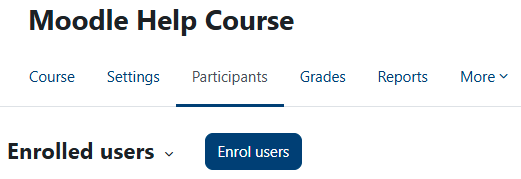
You can give others different levels of access to your course. From your course menu, select Participants. From the Participants page click on the Enrol users button.
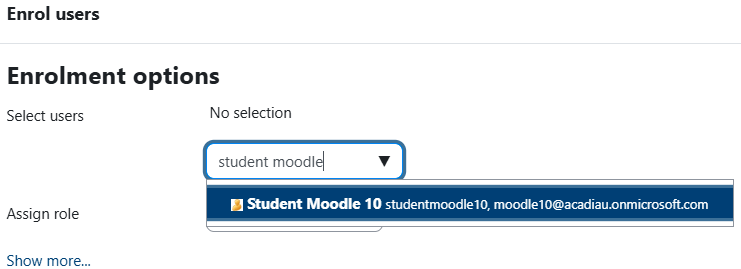
In the Search box, start typing the name of the person you wish to have access and click on their name. If there is more than one result, be careful to select the correct person (you may need to check the username or email address). You can search and add more people, as long as you want them to have the same role.
From the Assign role dropdown select the role you wish to assign.
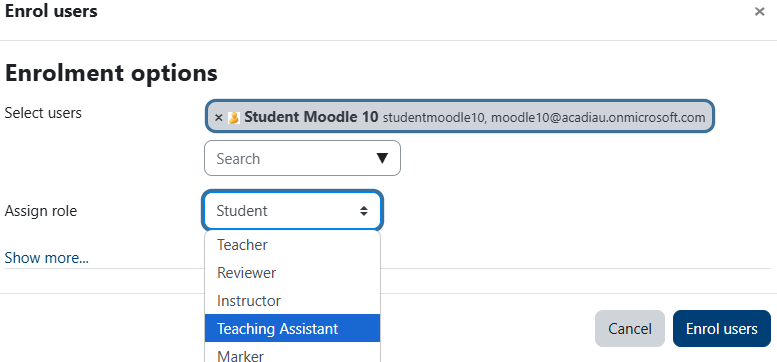
When you are done, click on the Enrol users button to complete the process. You can verify your role assignment(s) by checking the list of enrolled users.
Enrolment Options
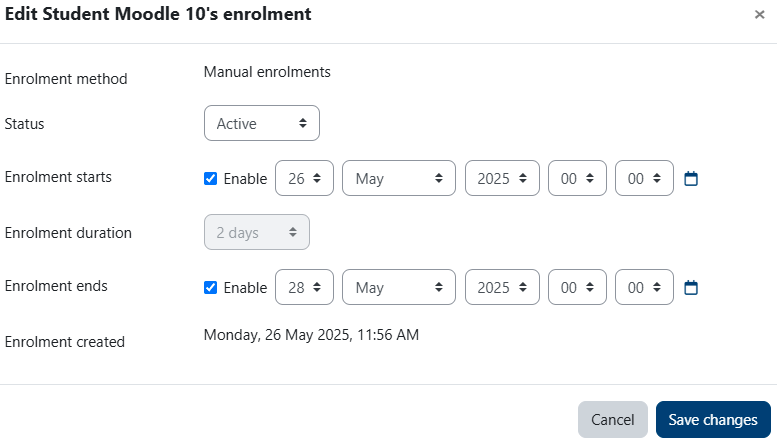
If you wish, you can set specific enrolment dates for someone you have given access to. Click on the  (pencil icon) to the right of the person in your Enrolled users list.

Here you can set enrolment dates and status. When you have finished, just click on the Save changes button. You should not change these options for automagically enrolled students, just those who have been manually enrolled.
Removing someone from your course
It's fairly simple to remove someone from your course. From the Enrolled users list, find the person you want to remove and click on the  (trashcan icon).

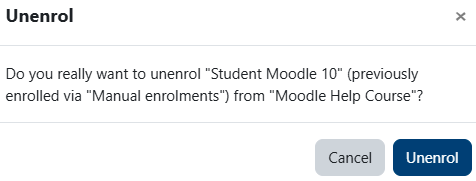
Confirm the removal by clicking on the Unenrol button.