


Hide Participants List From Students
Sometimes you need to keep your students from seeing who is in the class or what roles they have. These instructions explain how to hide the Participants List.
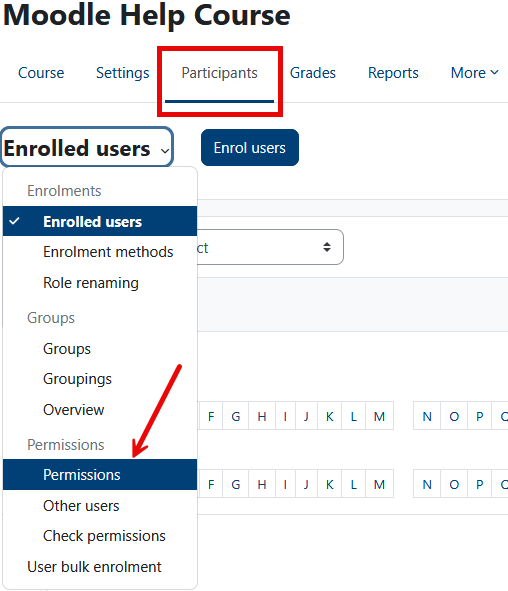
First, click on the Participants link at the top of your course page, then select Permissions from the Enrolled users dropdown list.
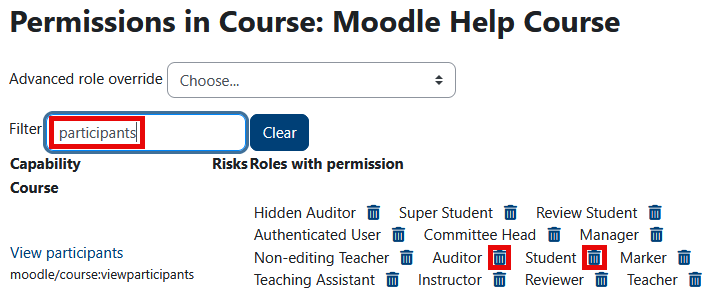
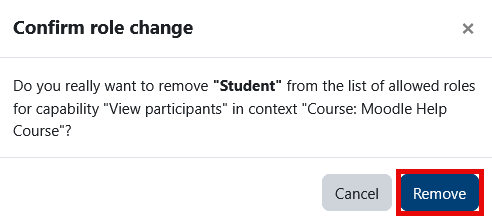
Next, type "participants" in the Filter box to bring up the permissions we need to modify. For each of student and auditor, click on the trash can to the right, then select the Remove button in the Confirm role change window.
You will now see that the student and auditor roles no longer have permission to View participants.
