


Placement Test Instructions
Please select the appropriate option below to see instructions for accessing your placement test.
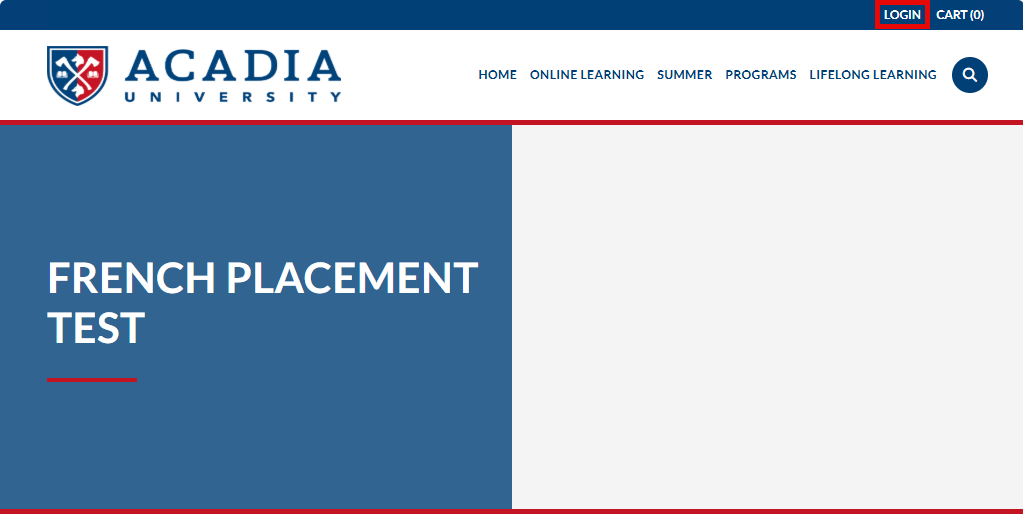
After clicking on the link on the French website, you will be taken to the French Placement Test sign-up on Explore. Click on the LOGIN link at the top right of the page.
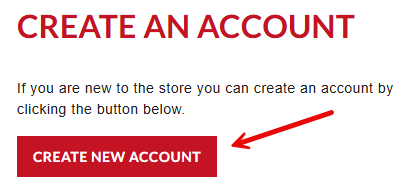
Fill in the necessary fields under ACCOUNT DETAILS and CONTACT DETAILS, then click the CREATE ACCOUNT button at the bottom of the page.
After reading the pertinent information on the French Placement Test page, scroll down to the bottom of the page and click the ENROLL button.

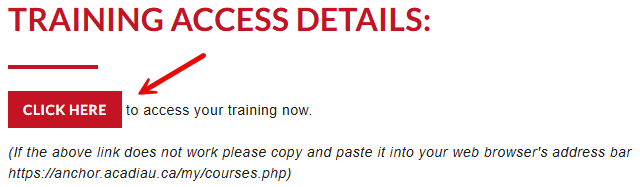
On the confirmation page, click the CLICK HERE button to access Moodle.
Note: for those who are Acadia students, this is NOT the same Moodle instance you access for your regular courses, which is why you have set up a separate account.
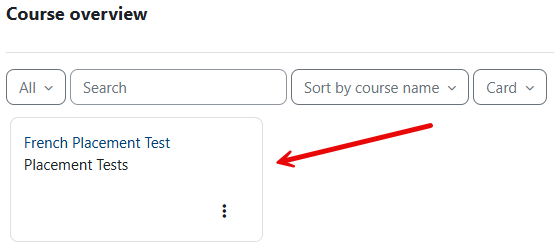
Now that you are on the My courses page, you will see the French Placement Test course. Click on that course to access the test.
Click on the Take the French Placement Test link, and away you go!
After clicking on the link on the Spanish website, you will be taken to the Spanish Placement Test sign-up on Explore. Click on the LOGIN link at the top right of the page.
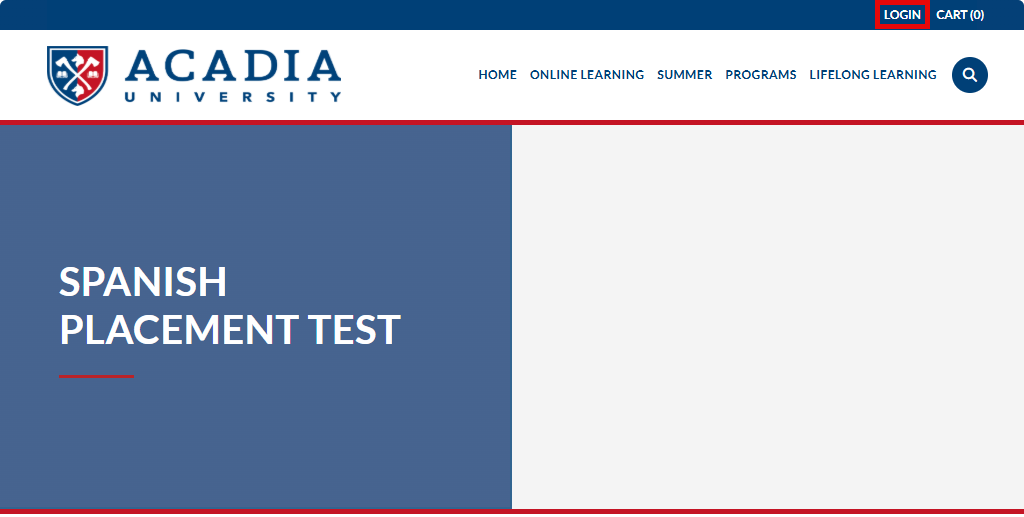
Fill in the necessary fields under ACCOUNT DETAILS and CONTACT DETAILS, then click the CREATE ACCOUNT button at the bottom of the page.
After reading the pertinent information on the Spanish Placement Test page, scroll down to the bottom of the page and click the ENROLL button.
On the confirmation page, click the CLICK HERE button to access Moodle.
Note: for those who are Acadia students, this is NOT the same Moodle instance you access for your regular courses, which is why you have set up a separate account.
Now that you are on the My courses page, you will see the Spanish Placement Test course. Click on that course to access the test.
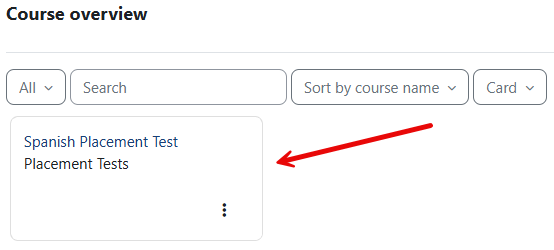
Click on the Take the Spanish Placement Test link, and away you go!