


Respondus LockDown Browser
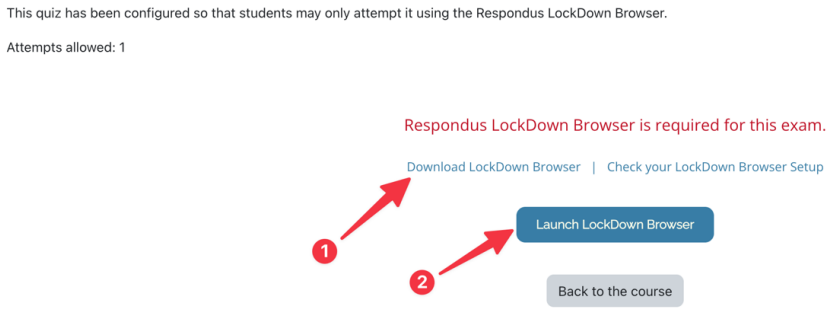
When you attempt a quiz that uses Respondus LockDown Browser, you will see the following page. Click Download (1) if you have never used it before, or Launch (2) if you have.
Download LockDown Browser
If it is your first time using Respondus LockDown Browser, click on the Download LockDown Browser link.
You will be taken to the Respondus download page, which looks like this:
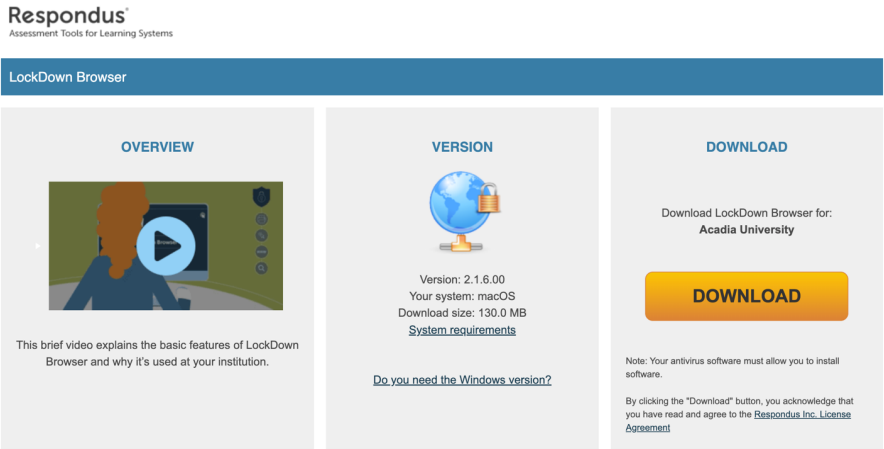
Make sure the version listed in the middle pane correctly identifies your operating system (Windows or macOS).
Click the big DOWNLOAD button to download the appropriate version for your computer.
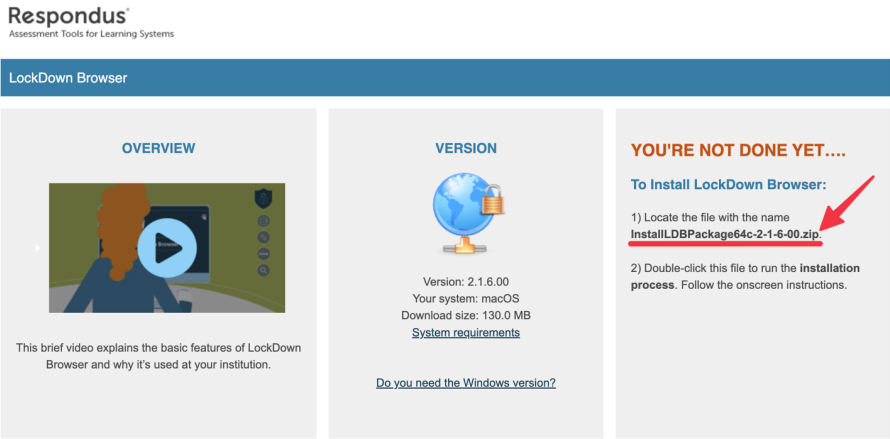
Once the download is complete, you should see this on your screen. Note the file name.
Install LockDown Browser
Once LockDown Browser is downloaded, you need to install it. Find the file listed above. The file will most likely be in your Downloads folder.
If the file is a zip file, you need to unzip it first. This will create a new file.
In macOS, this will be a .pkg file (Installer flat package).

In Windows, it will be an .msi file (Windows Installer Package).

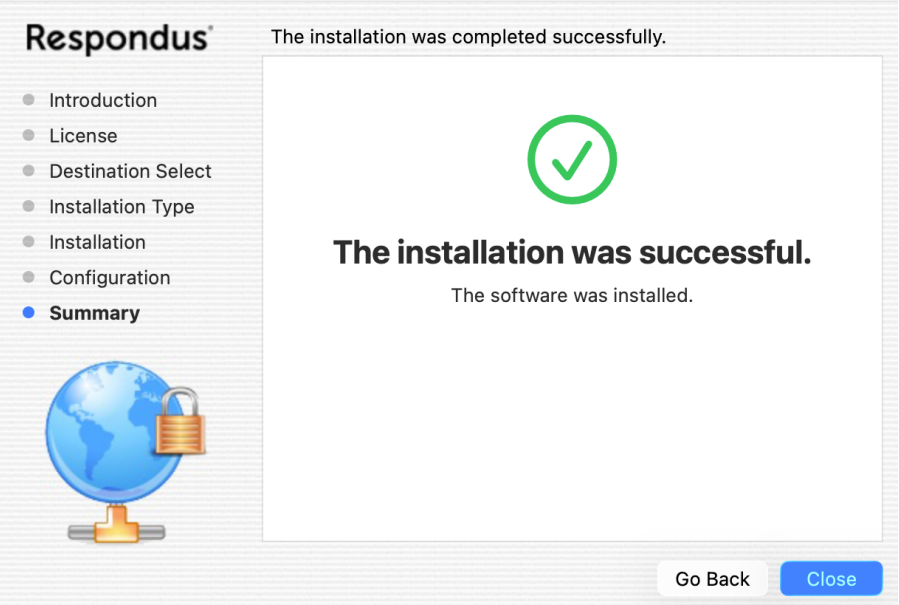
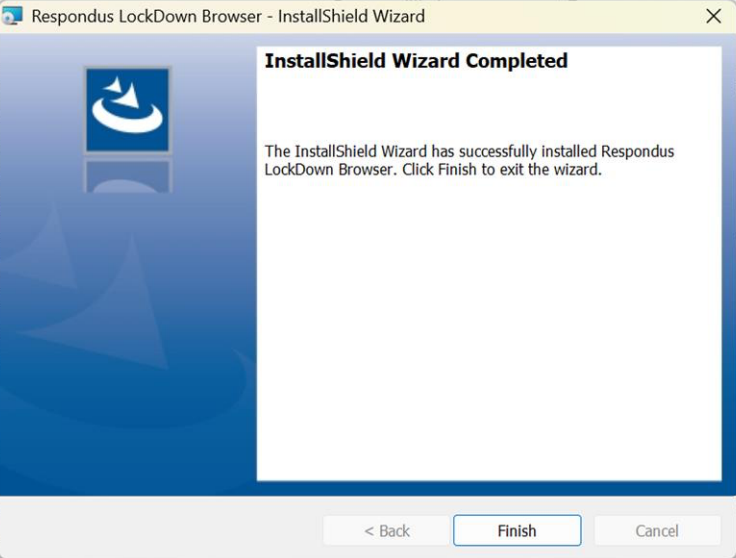
Double-click the package file to start the installation. Follow the prompts to complete the installation. You should see one of the following screens:
Using LockDown Browser
Now that you have LockDown Browser installed, switch back to Moodle and click on the Launch LockDown Browser button.

You may get a pop-up window asking you to allow LockDown Browser to open or make changes - accept these prompts.
LockDown Browser will then open and tell you which programs need to be closed (if any) in order for you to continue. This may take a few minutes. Click Close applications and continue.
You should then see a Start quiz button, which will allow you to take the Moodle quiz,
Once you have submitted the quiz in Moodle, you can close LockDown Browser.