


Respondus LockDown Browser
Create the Quiz
Create a quiz as you normally would. It will later be connected to the Respondus LockDown Browser.
Add the Respondus Block
- Turn on Edit mode in your course.
- Open the right-hand drawer.
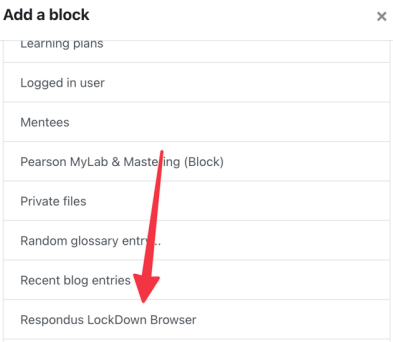
- Click Add a block.
- In the pop-up, scroll down and select Respondus LockDown Browser.

Require LockDown Browser in Your Quiz
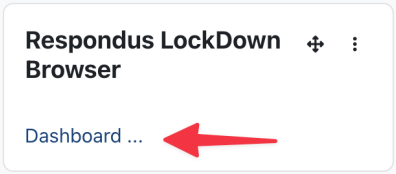
Click the Dashboard ... link in the Respondus block in the right-hand drawer.
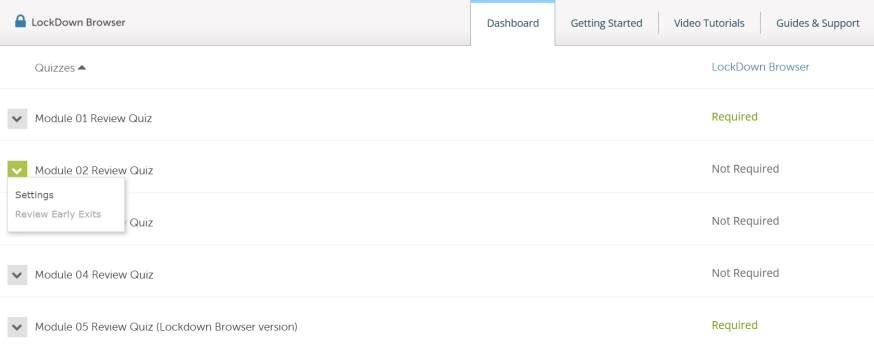
Click the arrow next to the appropriate Quiz, and select Settings.
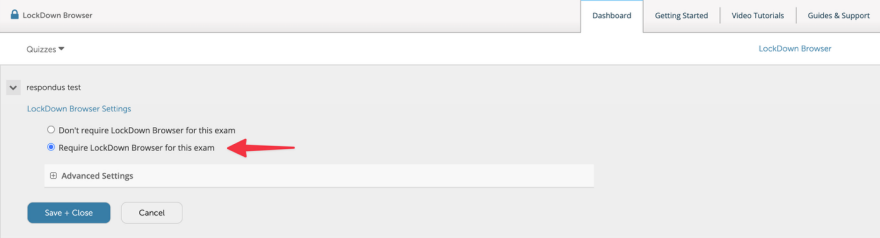
Select Require LockDown Browser for this exam, select any advanced settings you wish to use, and click Save and Close.
Preparation
Your students will need to download and install LockDown Browser before they can take the quiz. This can take several minutes, and some students may need help with the installation. You must do a test quiz before attempting the live quiz to ensure students can download, install, and finish the quiz. Student instructions can be found here  .
.
Test Quiz Setup
- Create a new quiz in Moodle with a single question.
- Follow the instructions above for requiring LockDown Browser for this quiz.
- Have the students install LockDown Browser and attempt the quiz.
- If the students can complete these steps, they are ready for the actual quiz.